Performing Discriminant Analysis
Select Discriminant Analysis under the Methods menu (it is listed under the Multivariate Modeling heading).
Discriminant Models
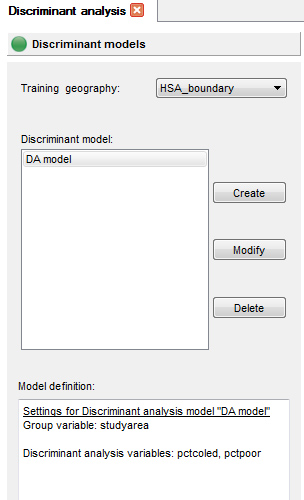
When the task manager opens for discriminant analysis, it will start on the "Discriminant models" section. Here you must choose your geography (if your project contains more than one), and then indicate whether you would like to create, modify, or delete a model. You can create a suite of models that all share the same geography within one "tab" in the task manager, and these will all appear with the default name "DA model" on this page unless you change the name in the Create Discriminant Model dialog. To modify an existing model, highlight it, and then click the "Modify" button. Similarly select a model and click on the "Delete" button to remove it from the list. Additional models can be created and saved and they will all be listed in this window. Note that if you choose the method again from the methods pull-down menu, a new discriminant analysis tab will appear and will list the same suite of models.
Define a new model
When you click the "Create" button in the initial task manager page, a dialog will open where you define the dependent and independent variables that will be included in your discriminant model. You can also use the instructions below to modify a model you have already created.

This dialog will report the name of the geography you have chosen in the previous dialog window. Here you may also change the name of your Discriminant model.
The group variable option will allow you to select as group membership one of the integer-based datasets in the current geography. You are then able to choose from the list of available datasets which one you would like to include in the classification system (i.e. to create the discriminant functions). Use the left and right arrows to select datasets or remove them.
Discriminant Model Settings
Once you have defined your model, you will move on to the discriminant model settings panel.

You will select the target geography in this panel. This is the geography to which the classification scheme will be applied. If the target and training geography are the same, a "leave-one-out" approach will be used where each observation's group membership is deleted and predicted using the other observations.
This panel has an option to use pooled covariance matrices for all classes which is recommended for small training datasets.
You may set the prior probabilities to be equal so that each class has a priori the same probability to prevail at a location, or the probabilities can be proportional to the sample size. The latter option is recommended if the dataset is assumed to be representative of the proportion of different classes within the study area.
You may select to smooth the class probability datasets. This can be helpful when classifying rasters since the geographical coordinates of each location/pixel u being classified are not taken into account in this method. Since neighboring pixels are classified independently of each other, this can lead to noise and a salt-and-pepper effect in the classified image. This option allows you to attenuate that noise by replacing each class probability by the arithmetical average of the class probabilities for that pixel u and the adjacent pixels. After smoothing, the new set of L probabilities are re-scaled to guarantee they all sum to 1.
If you choose to match time intervals, then SpaceStat will process objects in the target geography which have a corresponding interval in the training geography. If you do not use this option, the discriminant model built from the first training data interval will be applied to all intervals in the target geography.
This tab also controls the start/end time for your analysis, as well as providing an option to name the folder which will contain the output datasets from the method.
Review Settings
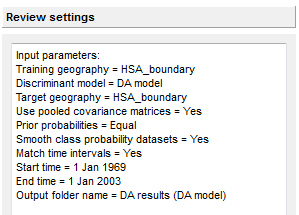
The review settings panel allows you to see all the settings used and may alert you to a parameter that has not been filled in correctly. If everything is correct, click the "Run" button to run the method.